Debug a bot
Run spimbot or spimbot gui with up to two bot files, bot 0 first, and any match options:
spimbot gui bot0.s bot1.s --seed 7 --mode part1The debugger opens paused at cycle 0, or running with --run. Its title shows the bot files and the seed, such as bot0.s vs bot1.s (seed 7) - Spimbot. Without --seed, the match gets a random seed.
Load bots
#- Choose File > Load bot 0… or File > Load bot 1….
- Drop a
.sor.asmfile on the window to add it as the next bot. - Choose File > Reload to read the files again. Each breakpoint stays on its source line.
Loading and reloading restart the match from cycle 0. When a file doesn't assemble or load, a dialog shows the errors:
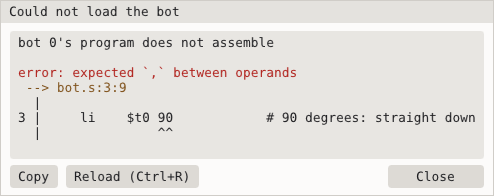
Fix the file, then choose Reload in the dialog or press Ctrl+R.
Panels
#The View menu turns each panel on and off, and View > Reset layout puts them back.
| Panel | Shows |
|---|---|
| Map | The match |
| Registers | The integer, floating-point and coprocessor 0 registers, on the Int, FP and CP0 tabs. Values that the last step, run or pause changed are highlighted |
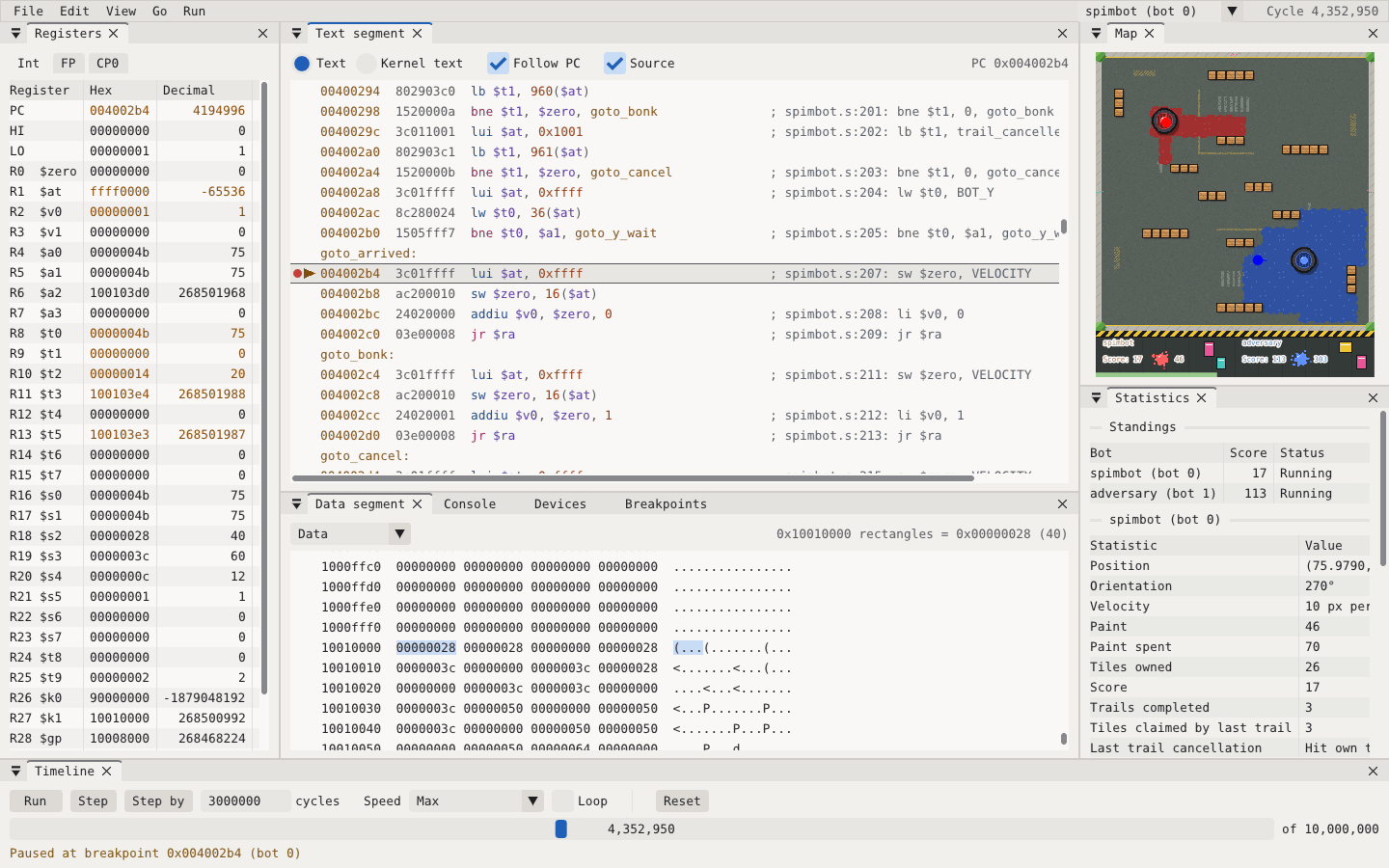
| Text segment | The instructions, each with its address and machine code. Kernel text shows the exception handler, Follow PC keeps the PC in view, and Source shows the source lines |
| Data segment | Memory as hex words and characters. The region picker chooses the memory region, and the toolbar shows the selected word's address, label and value |
| Console | A tab per bot with its console output and an input line |
| Devices | The bot's MMIO registers |
| Statistics | The standings and each bot's game statistics |
| Breakpoints | Every bot's breakpoints and watchpoints |
| Timeline | The run controls, the seek bar and a status line |
The selector at the right end of the menu bar picks the bot that Registers, Text segment, Data segment and Devices show. The current cycle appears beside it.
Run and step
#| Command | Action |
|---|---|
| Run > Run | Run or pause the match |
| Run > Step | Run one cycle, in which each running bot executes one instruction |
| Run > Step by N cycles | Run the number of cycles set in the Timeline |
| Run > Run to cursor | Run until the shown bot reaches the selected instruction |
| Run > Reset | Restart the match from cycle 0 |
Run > Speed caps the cycles run each second, and Run > Loop restarts the match when it ends. The Timeline has the same commands as buttons, with the Step by count in the box beside them:

The status line says why the match paused, such as Paused at breakpoint 0x004002b4 (bot 0). When the match ends, it gives the result, such as bot0 wins after 10,000,000 cycles (12-7).
Change the match settings
#Run > Match settings… changes the seed, the mode, the cycle limit and tournament rules:
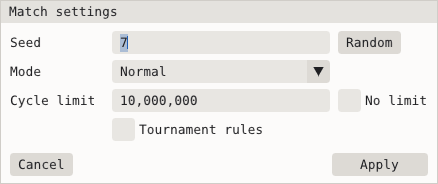
- Random draws a new seed.
- No limit removes the cycle limit.
- Apply restarts the match from cycle 0 with the new settings and keeps the bots, breakpoints and watchpoints.
Reset, Reload and video exports use the new settings until you close the window.
Set breakpoints
#Select an instruction in the Text segment and press F9, or click the gutter on its row. When a bot reaches a breakpoint, the match pauses. Running or stepping from a breakpoint passes over it.
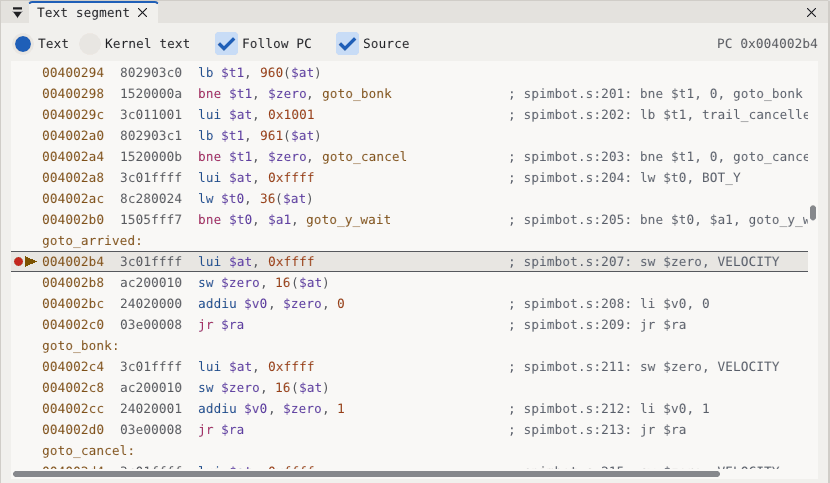
A red dot in the gutter marks a breakpoint, and the amber arrow and row mark the instruction the bot runs next. The comment on the first instruction from each source line gives the file, the line number and the source.
The Breakpoints panel lists every breakpoint and watchpoint with its bot, kind, address, location and contents. The entry the match is paused at is amber:

- Each entry's checkbox turns it on and off, and × removes it.
- Enable all, Disable all and Remove all act on every entry.
- Double-clicking an entry shows it in its segment.
Watch memory
#A watchpoint pauses the match when a bot reads or writes a word, through an instruction or a syscall's buffer. Right-click the word in the Data segment and choose a watch item:
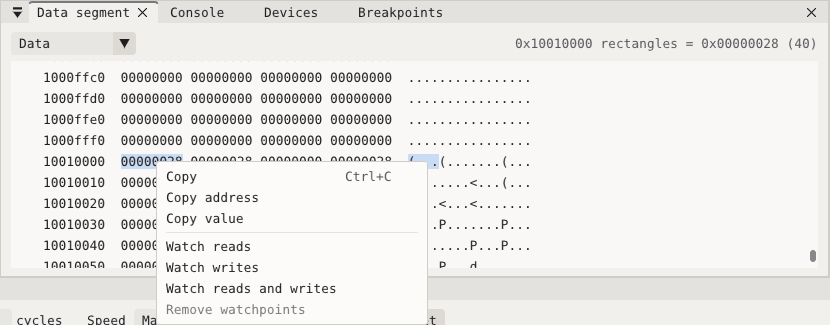
| Item | Pauses on | Listed as |
|---|---|---|
| Watch reads | A read of the word | Read watchpoint |
| Watch writes | A write to the word | Write watchpoint |
| Watch reads and writes | Either | Access watchpoint |
Choose a checked item again, or Remove watchpoints, to remove it. When a watchpoint pauses the match, the status line gives the address and the instruction, such as Paused on a watched write to 0x100105d0 at 0x00400300 (bot 0).
Pause on exceptions
#Run > Pause on exceptions, on by default, pauses the match when a bot raises an exception other than an interrupt, and the status line names the exception. The Breakpoints panel has the same checkbox. Turn it off to let the bot's exception handler run. Under tournament rules, an exception crashes the bot and ends the match.
Send console input
#A bot that reads its console with no input waiting pauses the match, and its Console tab takes the keyboard. Type a line and press Enter to send it. A match that was running resumes. Rewinding, looping and video exports replay console input at the cycle you sent it.
Navigate and copy
#- Go > Go to… takes a hex address, a symbol, a register such as
$sp, orpc. - Go > Follow target, or double-clicking a branch or jump target, goes to the target.
- Go > Back and Go > Forward retrace these jumps.
- Edit > Copy copies the focused panel's selection as plain text. Context menus have more copy commands, such as Copy address and Copy value.
Rewind
#Drag the seek bar in the Timeline. Dragging back rewinds the match at once. Dragging past the furthest cycle reached runs the match forward to that cycle. After a rewind, running, stepping or sending console input replaces the rest of the match.
Export an image or a video
#File > Export PNG… saves the map as it stands, the same picture that spimbot run --png saves. File > Export video… asks for the cycles per frame and a .mp4, .webm or .gif file, then plays the match again from cycle 0 to encode it. Video export needs ffmpeg on your PATH, as Videos describes.
Settings
#View > Theme picks the color theme, and the zoom commands scale the window from 50% to 300%. Debugger settings describes where the debugger saves its layout and settings.
View > Show grid draws a line on every tile edge and a brighter one every 5 tiles, labeled with its pixel coordinate along the top and left edges. Divide a coordinate by 10 for its tile: the line labeled 150 is the left edge of tile 15. Exported PNGs and videos show the grid while it is on.
Keyboard shortcuts
#Shortcuts don't work while you type in a field or while a menu or dialog is open. Keys marked "held" repeat while you hold them.
| Shortcut | Command |
|---|---|
| Ctrl+O | Load bot 0 |
| Ctrl+R | Reload |
| Ctrl+Q | Quit |
| Ctrl+C | Copy the selection |
| Ctrl+A | Select all in the focused panel |
| Delete | Remove the selected entries in the Breakpoints panel |
| G | Go to |
| Esc or Alt+Left | Back, or cancel a seek |
| Alt+Right | Forward |
| Enter | Follow target, or show the selected Breakpoints entry |
| Up, Down | Move the selection a row (held) |
| Page Up, Page Down | Move the selection a page (held) |
| Left, Right | Move the Data segment selection a word (held) |
| Shift with a movement key | Extend the selection (held) |
| Ctrl+Alt+B | Show the Breakpoints panel |
| F5 | Run or pause, or cancel a seek |
| F10 | Step one cycle (held) |
| Ctrl+F10 | Run to cursor |
| F9 or F2 | Toggle breakpoint |
| Ctrl+Shift+F5 | Reset |
| Ctrl+= | Zoom in (held) |
| Ctrl+- | Zoom out (held) |
| Ctrl+0 | Reset zoom |