Get started with Spimbot
This tutorial installs Spimbot, then checks, debugs, runs and grades a first bot.
Install Spimbot
#Download a release, or build Spimbot from source. On Linux, the debugger's file dialogs need the XDG desktop portal. To export videos, install ffmpeg and put it on your PATH.
Download a release
#- From the releases page, download the archive for your system, such as
spimbot-0.1.0-linux-x86_64.tar.gz,spimbot-0.1.0-macos-aarch64.tar.gzorspimbot-0.1.0-windows-x86_64.zip. - Extract it. The archive holds a directory with the
spimbotprogram (spimbot.exeon Windows) and this documentation. - Add that directory to your
PATH, or run the program by its path, such as./spimbot.
On macOS, if the system refuses to open spimbot, clear its download flag:
xattr -d com.apple.quarantine spimbotBuild from source
#You need Rust 1.99 or later (rustup update installs the latest) and a C and C++ compiler.
git clone https://github.com/Mewski/spimbot.git
cd spimbot
cargo install --path crates/spimbot --locked
Cargo installs spimbot in ~/.cargo/bin.
Check the installation
#spimbot --versionspimbot 0.1.0Write a bot
#A bot is a MIPS assembly program that starts at main. Save this bot as bot.s:
	.text
main:
	li	$t0, 90			# 90 degrees: straight down
	sw	$t0, 0xffff0014($zero)	# ANGLE
	li	$t0, 1
	sw	$t0, 0xffff0018($zero)	# ANGLE_CONTROL: 1 sets the heading
	li	$t0, 10
	sw	$t0, 0xffff0010($zero)	# VELOCITY: full speed
loop:
	j	loop
The bot turns to face down and drives at full speed. MMIO registers lists every register a bot uses.
Check the bot
#spimbot check bot.sWhen the program assembles, check prints nothing and exits with code 0. Otherwise it prints each error with its file, line and column, and exits with code 1. For example, without the comma after $t0 on line 3, it prints:
error: expected `,` between operands
 --> bot.s:3:9
  |
3 | 	li	$t0 90			# 90 degrees: straight down
  | 	  	    ^^
Debug the bot
#spimbot bot.sThe debugger opens on a match with your bot as bot 0, paused at cycle 0.
- Press F10 to step one cycle.
- In the Text segment, click the
looplabel and press F9 to set a breakpoint. - Press F5 to run to the breakpoint.
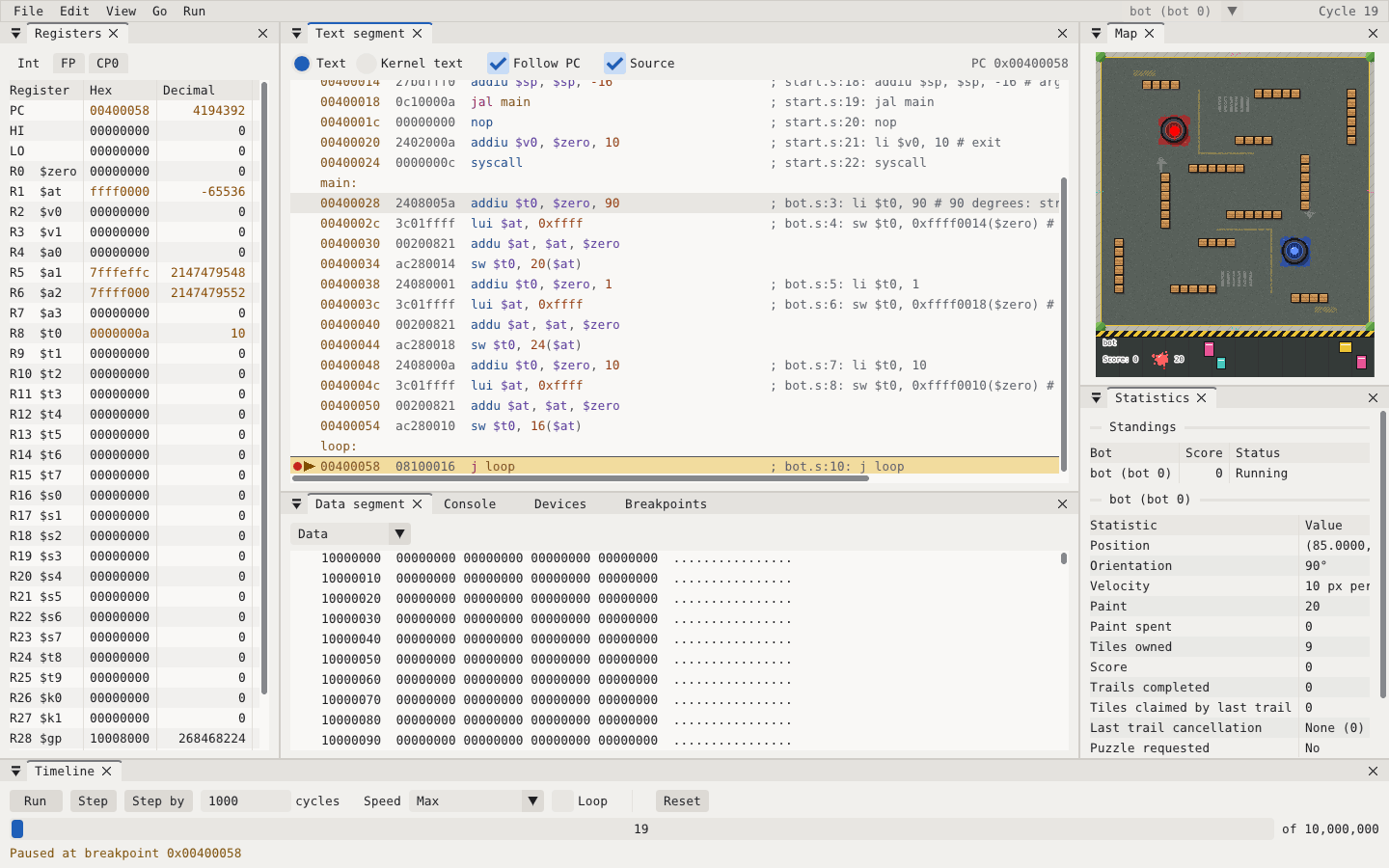
The match pauses at cycle 19, when the bot reaches loop. The Registers panel highlights the values that changed, such as $t0, which holds the velocity 10. Press F9 again to clear the breakpoint, then F5 to run on.
To add an opponent, name both files, bot 0 first: spimbot bot.s other.s. The debugger guide covers the panels and shortcuts.
Run a match
#spimbot run bot.s --seed 3run plays the match to its end without the debugger. It prints the seed, each bot's score and status, and the result. The seed picks the map and puzzles, so the same bots on the same seed play the same match. Without --seed, the match gets a random seed. The matches guide covers replays, images, videos and tournaments.
Grade a lab part
#spimbot grade bot.s --part onboardingSeed: 2831809811614953440
Test Points Details
Set the timer 0/5 Write a cycle to TIMER to request an interrupt
Acknowledge the timer interrupt 0/5 Write to TIMER_ACK
Move 20 pixels down 10/10
Total 10/20The Details column says what each missed test asks for. The grading guide lists every test.